The Timefreeze is, as the name suggests, capable of slowing down the time of the audio input or even stop it completely. This happens by using a Modulation Envelope. Apart from this you can also use many other effects like Pitch, Volume, Filter or Rate Reducer. To reduce the tempo VPS Timefreeze uses two algorithms: Grain and FFT. You can use the Spectral Mix dial to smoothly blend between the two.
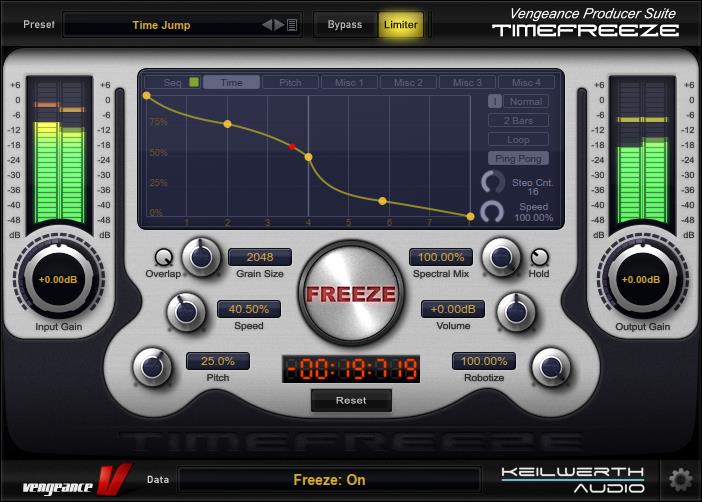
Vengeance Producer Suite – Essential FX Bundle 2 – Timefreeze
Display: The top part of the Plugin shows a graphical view of the Modulation envelopes. Timefreeze has a Time Envelope, a Pitch Envelope and 4 Misc Envelopes. You will also find a built-in Step Sequenzer (Seq), which allows you to automate the pressing and releasing of the „Freeze“ button, all synchronized to your hosts BPM.
Freeze Button: All Envelopes starts when you press the large „Freeze“ button. This can be automated through your host or the built-in step sequencer.
Sequencer: The built-in sequencer offers 64 steps (the Length can be set with the Length control). After you have turned the sequencer on (use either the small button in the header of the sequencer or the On/Off button in the lower left hand corner of the sequencer), you can use a left click to fill the individual steps. If a step is filled this means that the large „Freeze“ button will be pressed and all Envelopes will be started. If you want to erase a step, click again using the left mouse key. The length of these steps can be set with the „Resolution“ control. Typically a step is a 16th note. A further function of the sequencer is that you can reset the buffer (right click on a step and an „R“ appears). This means that the current buffer (for instance a frozen snare drum) will be emptied and a new buffer will be recorded. This allows for some incredible effects.
Time Envelope: This Envelope controls the time path. Top left means unchanged original speed. The envelope then normally falls towards the bottom right which means totally frozen or stand-still. You can move the points freely or by double clicking add new points. On the right you will find some more parameters:
- On / Off: This button turns the Envelope on or off.
- Env. Mode: Here you can switch between two modes: „normal“ or „step“. Step Mode works slightly differently as here you can work with Steps rather than an Envelope.
- Length: You can set the length of the Envelope here. Tip: 1 Bar is 4 Bass drum hits in a Dance Track.
- Loop Mode: Here you can set if the Envelopes Loop (start over from the beginning after they have ended) or just run once(Loop is disabled).
- Ping Pong: The Envelopes can work in „Normal“ mode (Ping Pong disabled) or in Ping Pong Mode (Ping Pong activated). This means that after running through the Envelope the play position turns round and runs back towards the beginning of the Envelop. This can also be combined with the Loop Mode.
- Step Count: This control is only active when the Envelope mode is set to „Step“. Here you can set the number of steps.
- Speed: This important parameter controls to what extent the Envelope effects the time. If the Speed control is set to 100% it is possible to go all the way down to total stand-still.
Pitch Envelope: The Pitch Envelope functions slightly differently then the Time Envelope. The Pitch Envelope functions in both directions which means its null point is on the centre axis. If a step or the curve is below this line the pitch is lowered, above the line and the Pitch is raised. In „step“ Mode you also have the possibility to input note values (like in an arpeggiator). Use the display below the Steps. The other elements are the same as those found on the Time Envelope. The Pitch Envelope however now has the Pitch control and not the Speed control. This functions otherwise in an identical way.
Misc Envelope 1 & 2: These two Envelopes are able to automate Volume, Overlap, Grain Size, Spectral Mix and Spectral Hold. How these effects function is described later in this manual.
Misc Envelope 3 & 4: These two Envelopes are able to automate Volume, High Pass, Low Pass, Spectral Mix and Robotize. How these effects function is described later in this manual.
Controls below the Display:
Grain Size: Grain Size sets the size of the Grains. A Grain is a tiny audio fragment. Timefreeze uses Grains in Grain Mode to slow the tempo down. Attention: The Spectral Mix dial must be turned to the far left to be in Grain Mode. The Overlap control on the left sets whether or not the individual Grains can overlap or are spaced out and separated by a gap. Grain Size and Overlap can be modulated using both Envelope 1 and 2.
Spectral Mix: Here you can blend between the two modes within Timefreeze. If the dial is set to the far left Timefreeze is working with Grains to slow down the time. Turn the dial to the right to use FFT. FFT Mode sounds much cleaner (especially at stand-still), but also slightly less clear than Grain Mode. They both sound totally different. You can set the Mix of these two modes at any time. Envelopes can also be used for this. The Hold Button only works when in FFT Mode. By using the Hold Button you can also „blur“ the signal right up to the point where only a diffuse frequency cloud is left over. Spectral Mix can be modulated with all 4 Envelopes. Hold can be modulated by Envelopes 1 and 2.
Speed: Here you can set the global Time (in Percent). 100% is original tempo, 50% half tempo and 0% is stand-still. If you are modulating the time using the Time Envelope, this dial should however always be set to 100%.
Volume: A simple volume control that is however very important when modulating using Envelopes. This control can be controlled by all 4 Envelopes.
Pitch: Here you can set the global Pitch (in Percent). The original Pitch is at the middle setting 0%, maximum values are +100% and -100% which equates to several octaves in each direction. If you wish to modulate the Pitch using the Pitch Envelope this control should always be set to 0%.
Robotize: This is a LoFi effect (Rate Reducer). With Robotize you can totally destroy the sound or simply make it sound „low resolution“. This control can be modulated with Envelopes 3 and 4.
The Clock: Directly below the central „Freeze“ button you will find the Clock. As soon as a time based effect (Time Envelope or Speed Control) differs from the original speed you can see the difference to the original speed set in your sequencer here. The Clock therefore runs backwards. If it stands at -00:05:000 this means that find yourself 5 seconds behind time.
Reset: This button resets the Clock and also the time-buffer. Everything which is contained in the time-buffer will be deleted and a update of the buffer takes place (the current audio signal).
Record Time (Sys Page): Here you can set how large the the Timefreeze memory is. If the time set here runs out a reset will take place automatically (buffer is emptied and an update takes place with the current audio signal). The memory is set to 1 minute in its factory setting, which should be enough for most situations.